An audio QR code could be made to provide instructions to a student in an independent learning activity or for a student with a lower reading ability, thus freeing up the teacher . An audio QR code could be used to link to a read-aloud story for a child to enjoy. An audio QR code could be a child describing their artwork, their goals for the year, an example of their reading proficiency, or for whatever purpose you wish to record an audio file! An audio QR code for classroom use takes just minutes to set up and gives students an instant, hands-free way to hear it.
Making an Audio QR Code for Classroom Use
The process is quite straighforward – record an audio file, store it and then create a QR code linking to that audio file.
There are many ways to record an audio file and as many ways to store the file (Dropbox, Google Drive, etc.) I think the fewer steps involved the better for already busy teachers! Although a little pricey ($7.99 AUD), I recommend the Cloud QR Generator from the App Store as it provides the most options for creating a QR code and is super easy to generate and store the QR Code (either to their cloud server or your own Google Drive.)
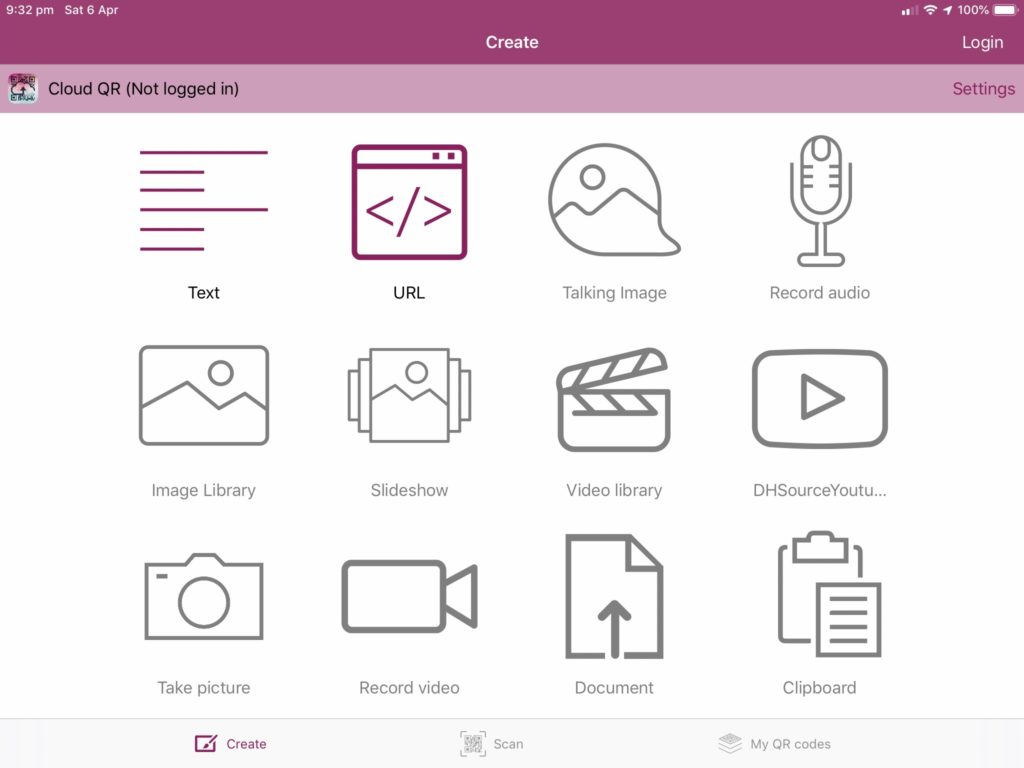
You will need to login to your account. However, if the teacher were to login to just one device, each child could use the app in turn to create their QR code and then save to a Google Drive, etc.
In order to create an audio QR code, simply click on the “Record audio” icon. You will need to give permission for the software to use the microphone. You are able to record up to 5 minutes and when ready, simply press the microphone icon to start recording. There is no countdown and recording begins straight away. Press the pause icon to stop the recording.
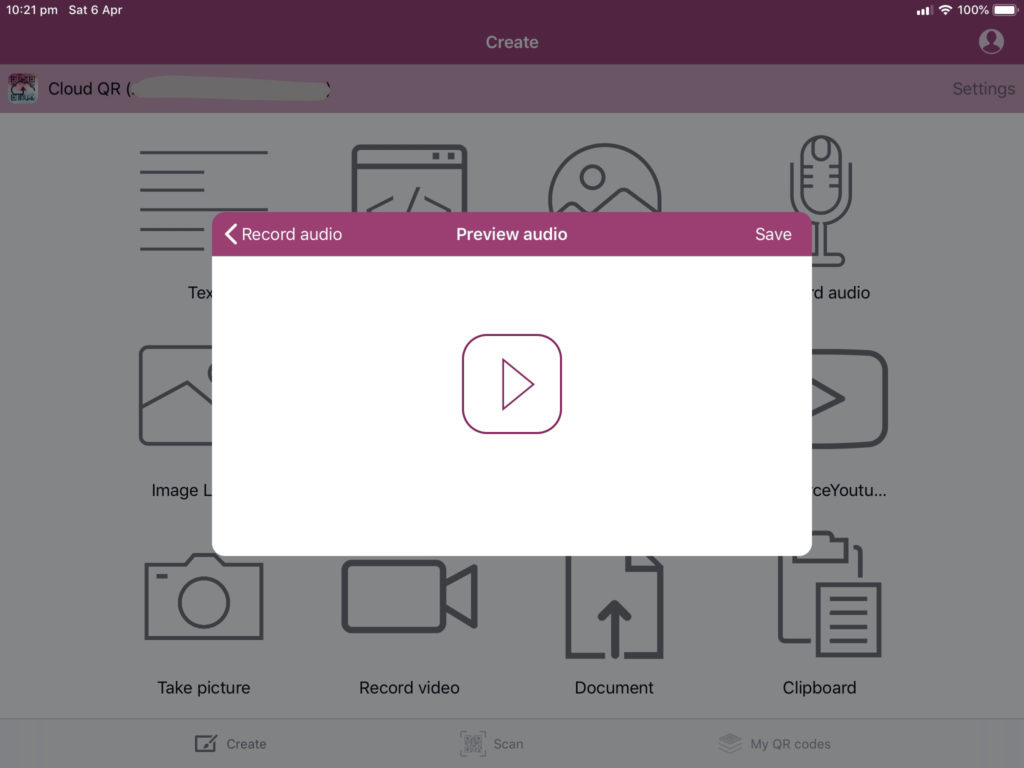
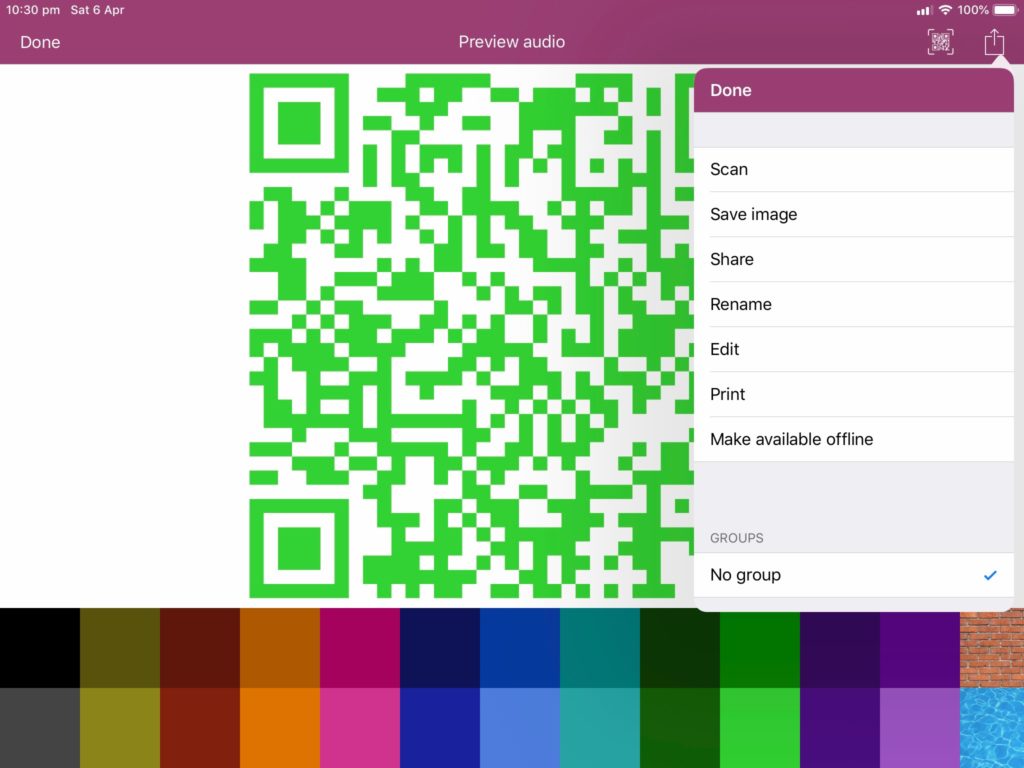
When the recording is finished, you can preview by pressing the play icon, or you can save the audio file. Pressing save will bring up the QR code for display where you can change colours or use the Share icon to rename (a very good idea to a name that is meaningful) and then to save the image (QR Code). When you press “save image” you will be asked for access to your Photos. The QR code image will be saved to your Photos on your mobile device where you can print or use later in your teaching.
Here is a great video showing how to do most of the above!
What are some the creative ways you could use an audio QR code in your classroom?
Hi Sharon and thank you for finding this site! My thesis was on a system level and how first-year teachers…
Thank you for these posts Matt. Keep them coming. I am graduating in about a year and very nervous. Does…
[…] You might like to read the article Tips for New Teachers. […]



Thanks Matt, I will check out the Pintrest. I think it would be very beneficial to have a more practical…